
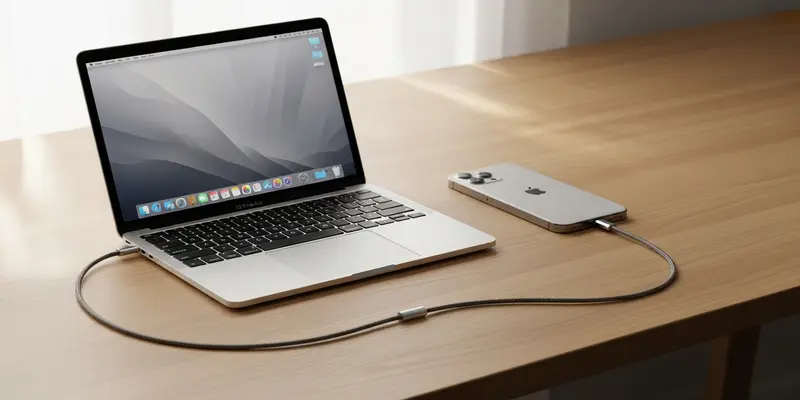
You are staring at a spinning wheel in your iPhone’s Settings menu. You know your storage is full, but the phone refuses to tell you which specific video is the culprit. It just gives you a vague bar chart and a prayer. This is the digital equivalent of a cluttered basement where you can’t find the light switch.
Stop waiting for the native menus to load. If you own a Mac, you have a surgical tool sitting in your Applications folder that Apple rarely mentions anymore: Image Capture. This utility is the fastest, most honest way to visualize and delete high-storage photos and videos without the bloat of the Photos app.
The Problem with the Default “Storage” Menu
The iOS storage menu is a masterpiece of obfuscation. It categories everything into broad buckets, making it nearly impossible to find that one 4K video you accidentally recorded for twenty minutes while your phone was in your pocket.
- It’s Slow: Indexing thousands of files on a mobile chip takes forever.
- It’s Vague: “Photos” is a category, not an action plan.
- It’s Protective: Apple doesn’t really want you deleting things; they want you buying more iCloud space.
Why Image Capture is the Secret Weapon
Image Capture isn’t a gallery; it’s a file manager. When you plug your iPhone into your Mac and open this utility, it treats your phone like a simple camera drive. There is no cloud syncing to wait for and no hidden metadata to crunch.
How to Use Image Capture Like a Pro
- Connect and Unlock: Plug your iPhone into your Mac via USB and unlock the phone.
- Launch Image Capture: Find it in your Applications folder or via Spotlight.
- Sort by Size: Click the “Size” column header. This is the game-changer.
- Batch Delete: Highlight the monsters—the multi-gigabyte videos—and hit the red delete icon at the bottom.
A Lesson from the Redwoods
I learned the power of this workflow the hard way during a trip to the Sequoia National Park. I was filming 4K 60fps clips of the canopy, and by day three, my iPhone 13 Pro hit a wall. The Settings menu told me I had 80GB of photos, but I couldn’t tell which clips were the heaviest.
I sat down at a local cafe with my MacBook, fired up Image Capture, and immediately saw a single 12GB file—a recording I had started by accident while hiking. It didn’t even show up at the top of my ‘Recents’ in the Photos app because of a timestamp glitch. Image Capture found it in seconds. I deleted it, and just like that, I had my phone back. It wasn’t just about the space; it was about the clarity of seeing exactly what was clogging the pipe.
Reclaiming Your Digital Sanity
Deleting files shouldn’t feel like a guessing game. By using a Mac to audit your iPhone, you move from a reactive state—waiting for warnings—to a proactive one. You aren’t just clearing space; you’re taking control of your hardware.
Stop paying for the 2TB iCloud tier just because you’re too afraid to look at your local files. Plug it in, sort by size, and be ruthless. Your iPhone will run faster, your backups will happen quicker, and you’ll finally know exactly what’s living on your device.
FAQs
Q: Does deleting files in Image Capture also delete them from iCloud? Yes. If you have iCloud Photos enabled, deleting a file via Image Capture on your Mac will sync that deletion across all your devices.
Q: Can I use Image Capture to move files to an external drive instead of deleting them? Absolutely. Just select the “Import To” destination at the bottom of the window to move them to a hard drive before you hit delete.
Q: Why does Image Capture show more files than my Photos app? Image Capture sees everything—including bursts, hidden folders, and certain system-generated assets that the Photos app might filter out or group together.
Q: Is it safe to delete files through this utility? Yes, it is a native macOS utility. However, unlike the Photos app, there is no “Recently Deleted” folder here. Once you hit delete in Image Capture, it’s gone for good.
Q: Why won’t my iPhone show up in Image Capture? Make sure you have “Trusted” the computer on your iPhone screen and that you are using a high-quality data cable, preferably an original Apple cable.
Q: Can I see file sizes in the mobile Photos app? Yes, by swiping up on an individual photo, but you cannot sort your entire library by size on the iPhone. That is why Image Capture is superior for storage management.