
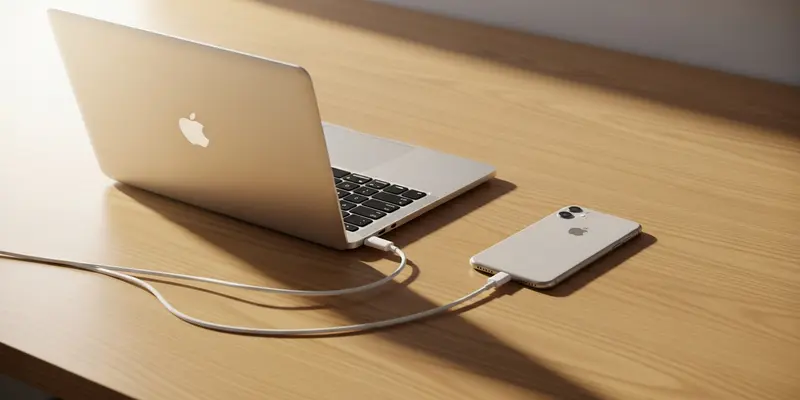
The red badge of shame. We’ve all seen it. You go to snap a photo of a once-in-a-lifetime sunset or your kid’s first steps, and there it is: "Storage Almost Full." Your iPhone begins to lag, your apps crash, and Apple starts nudging you toward a higher-tier iCloud subscription. It feels like digital extortion.
But here is the truth: managing storage directly on your iPhone is a nightmare. The internal storage manager is slow, it calculates sizes at a glacial pace, and deleting 50GB of 4K video clips one by one is a recipe for carpal tunnel. If you want to take back control, you need to stop using the phone to fix the phone. You need the Image Capture utility on your Mac.
The Forgotten Power Tool in Your Applications Folder
Most people ignore Image Capture. It’s been sitting in your Applications folder since the days of OS X Tiger, quietly waiting. While Photos.app tries to curate your life and sync everything to the cloud, Image Capture is a cold, efficient scalpel.
It treats your iPhone like a simple camera drive. There are no fancy animations or "On This Day" memories here. It just shows you a list of every file on your device, their exact file sizes, and a big, beautiful delete button.
Why This Beats the iPhone Settings App
When you use the iPhone’s internal settings to manage storage, you’re fighting a losing battle. The phone has to index the library while you’re using it. It’s inefficient.
- Sorting by Size: Image Capture lets you click the "Size" column. Instantly, those massive 4GB video files from three Christmases ago rise to the top.
- Batch Deletion: You can Shift-Click hundreds of files and delete them in one go. No "Recently Deleted" folder holding onto them for 30 days—they are just gone.
- Speed: The data transfer over a physical Lightning or USB-C cable is significantly more reliable than waiting for the phone’s UI to refresh.
How to Perform the ‘Great Purge’
- Connect your iPhone to your Mac via cable. Unlock the phone and "Trust" the computer if prompted.
- Open Image Capture (hit Cmd+Space and type it in).
- Select your iPhone under ‘Devices’ in the sidebar.
- Click the Size column header to find the largest offenders.
- Select the files you no longer need, click the Delete icon (the red circle with a line), and confirm.
The Day I Reclaimed 60GB in Two Minutes
Last summer, I was at a wedding in rural Tuscany. I had been shooting 4K 60fps video all day, and suddenly, my phone bricked. It wouldn’t even open the camera app. I sat down with my MacBook, plugged in the phone, and opened Image Capture.
Within seconds, I saw the culprits: six massive files from a rehearsal dinner I didn’t even want to keep. While the other guests were fighting with their ‘Optimize Storage’ settings and hoping for a signal, I nuked those 60GB of bloat and was back to shooting the ceremony in under two minutes. It felt like I’d discovered a cheat code for hardware.
Stop Overpaying for Peace of Mind
Apple wants you to believe that the only solution to storage woes is a monthly subscription. It isn’t. The solution is regular maintenance. By using Image Capture once a month, you keep your device lean and fast. Don’t be a slave to the cloud; be the master of your own hardware.
Connect the cable. Open the app. Delete the bloat. Your iPhone will thank you.
FAQs
Q: Does deleting files in Image Capture also remove them from iCloud? No. If you have iCloud Photos enabled, deleting via Image Capture usually removes the local copy. However, to be safe, always ensure your important photos are backed up elsewhere before a mass purge.
Q: Why isn’t my iPhone showing up in Image Capture? Check your cable first. Then, make sure your iPhone is unlocked and you have tapped "Trust" on the phone screen. If it still doesn’t show, restart the Image Capture app.
Q: Can I use this to move photos to my Mac before deleting them? Absolutely. You can select a destination folder at the bottom of the window and click "Download All" before you hit the delete button.
Q: Is there a way to see only videos? Yes. You can sort by ‘Kind’ or ‘Type’ in the list view to group all your MOV and MP4 files together.
Q: Does this work on Windows? Image Capture is a macOS exclusive. Windows users can use the ‘Photos’ app or ‘File Explorer’ to view the iPhone as a drive, but the experience is often buggier.
Q: Is it safe to delete files this way? Yes, it is a system-level utility. Just remember that these deletions are permanent and bypass the ‘Recently Deleted’ safety net on your phone.