
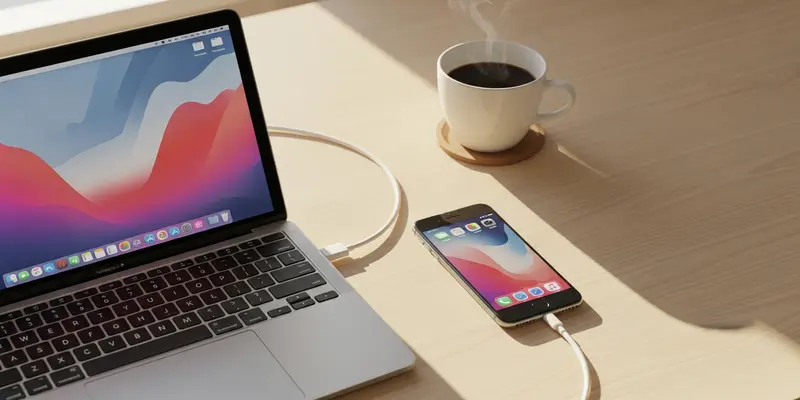
The "Storage Almost Full" notification is the modern digital equivalent of an engine check light. It usually pops up at the worst possible moment—right when you’re about to film a once-in-a-lifetime sunset or a child’s first steps. Most users instinctively head to the iPhone’s storage settings, only to be met with a vague colorful bar and a suggestion to buy more iCloud space. It feels like a trap because, frankly, it is.
Apple wants you to pay for the cloud. But if you want to actually manage your hardware, you need to stop looking at your phone and start looking at your Mac. There is a legendary, often forgotten utility called Image Capture that provides the granular control the iOS interface hides from you. It is the secret weapon for anyone struggling with [Image Capture] and bloated iPhone storage.
Why the Photos App is Failing You
The standard Photos app on macOS is beautiful, but it’s a librarian, not a mechanic. It wants to organize your memories into curated folders and faces. When you’re trying to find that one 4GB video file that’s choking your device, Photos makes it surprisingly difficult to see raw file sizes in a simple, sortable list.
iOS is even worse. It tries to "optimize" storage by offloading full-resolution files to the cloud, leaving behind low-res thumbnails. This sounds great until the system glitches, and you’re left with a phone that claims to be full despite having no visible large files. You need a tool that sees the phone as a hard drive, not a scrapbook.
Image Capture: The Scalpel in a World of Hammers
Image Capture has been tucked away in your Mac’s Applications folder since the 1990s. It’s lean, it’s fast, and it doesn’t care about your "Memories" or "Live Photo" effects. It sees data.
Here is how you use it to reclaim your life:
- Connect via Cable: Don’t trust Wi-Fi syncing for this. Plug your iPhone directly into your Mac.
- Open Image Capture: Use Command+Space and type its name.
- The List View: Unlike Photos, Image Capture defaults to a list. Click the ‘Size’ column header.
- The Revelation: Suddenly, the monsters reveal themselves. That 10-minute 4K video of your cat sleeping? It’s right there at the top, taking up 3GB of space.
A Lesson Learned in the Cold
I learned this the hard way last February. I was in the middle of a professional shoot in a remote cabin, using my iPhone 15 Pro as a secondary b-cam. Ten minutes in, the phone choked. "Storage Full." I had supposedly cleared everything the night before. I was frantic, deleting apps and clearing browser caches, but the storage bar barely budged.
I finally grabbed my MacBook, plugged the phone in, and fired up Image Capture. There it was: a 22GB screen recording from a Zoom call I’d accidentally triggered three weeks prior. It didn’t even show up in my ‘Recent’ photos because of a metadata glitch. Image Capture found it in seconds. I hit the red delete icon, and my phone breathed again. That’s the power of seeing the raw file structure.
How to Clean Up Without the Stress
Don’t just delete everything. Use the date-sorted view in Image Capture to find old large files you’ve already backed up.
- Sort by Size: Find the biggest offenders first.
- Verify: Double-click the file to preview it on your Mac before nuking it.
- The Delete Key: Select the files and hit the delete icon at the bottom of the window (the circle with a line through it).
- Empty the Ghost Space: Sometimes, iOS needs a quick restart after a mass deletion via Image Capture to realize the space has actually been reclaimed.
Summary and Action Plan
Stop letting your phone dictate your storage limits. Your Mac has the tools to fix this; you just have to use them. Tonight, grab your lightning or USB-C cable, plug in, and run Image Capture. You’ll likely find 10-20GB of junk you didn’t even know existed. Reclaim your space and stop paying for extra iCloud storage you don’t actually need.
FAQs
Q: Will deleting files in Image Capture remove them from iCloud? A: Yes. If you have iCloud Photos enabled, deleting a file via Image Capture tells the system to remove it from the entire ecosystem. Back it up to an external drive first if you want to keep it.
Q: Why doesn’t Image Capture show my phone? A: Ensure your iPhone is unlocked and you have tapped "Trust This Computer." Also, try a different cable if it doesn’t appear in the sidebar.
Q: Is it faster than using the Photos app? A: Significantly. Image Capture doesn’t try to build a library or scan for faces; it just lists files, making it much faster for bulk management.
Q: Can I use this to move photos to an external drive? A: Absolutely. You can set the "Import To" destination at the bottom of the screen to any folder on an external hard drive, then delete them from the phone in one go.
Q: Does this work on Windows? A: No, Image Capture is a macOS exclusive. Windows users can use the ‘File Explorer’ to view the DCIM folders, but it’s much more disorganized than the Image Capture interface.
Q: Will it delete my apps? A: No. Image Capture only sees media files—photos and videos. Your apps and system data are safe from accidental deletion through this utility.